Routing Area — Signal Flow for Your VST Plugins
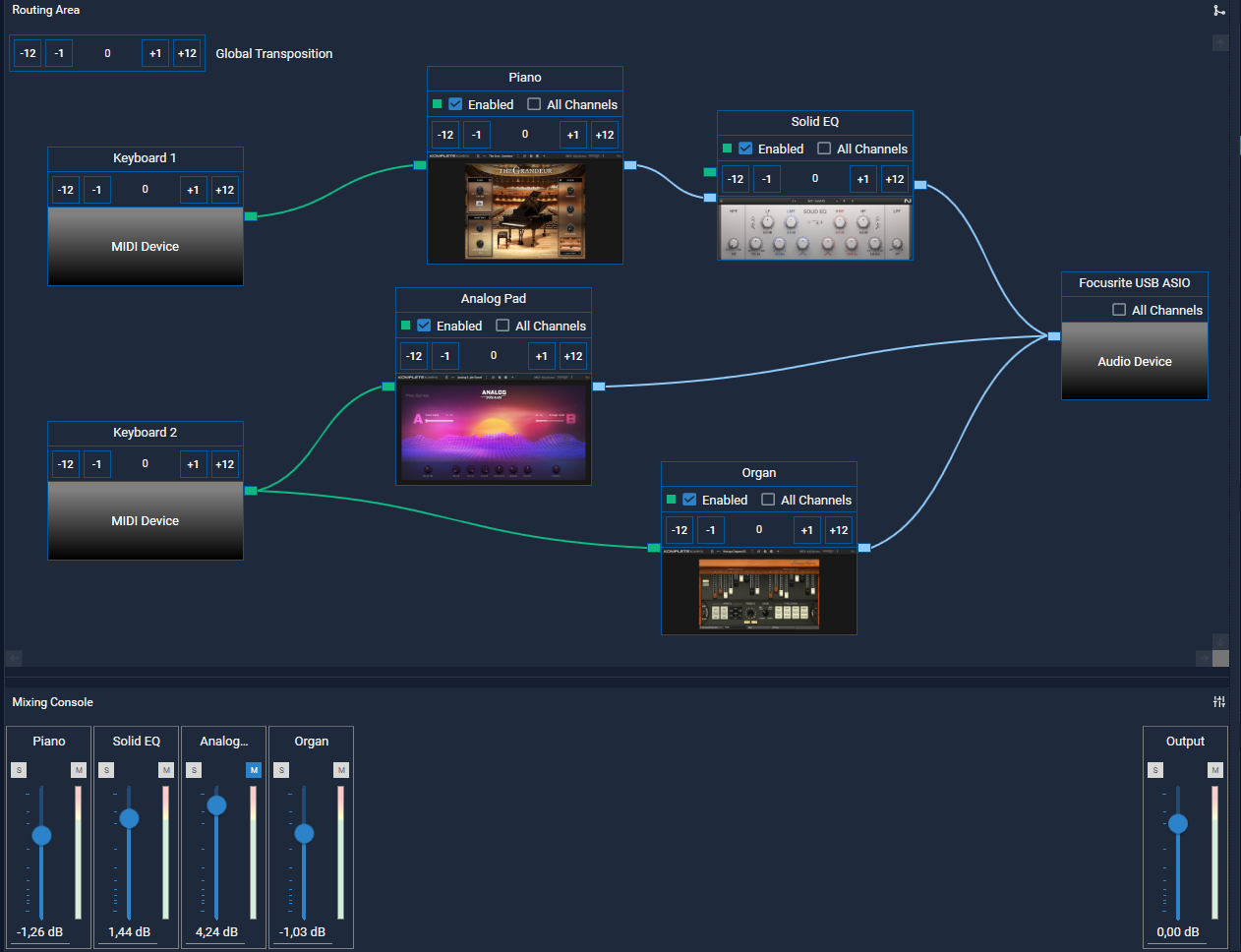
Connect MIDI controllers, VST plugins, and audio devices with each other in the routing area to create the signal flow for your sound.
The routing area displays all connections visually as a diagram: plugins, MIDI controllers, and ASIO drivers appear as elements with their respective connection lines. This gives you an immediate overview of how your signal flows.
Create Setup
Drag and drop the desired elements from the devices and plugin section into the routing area — or add them via the menu. For each element in the tree structure (song, song part, category), you can define a dedicated routing area. This allows you to create individual sound configurations for each song and song part.
Transposition
You can apply transpositions directly on the plugin and MIDI elements in the routing area. To ensure an active transposition doesn’t go unnoticed, an orange frame highlights the affected element right in the routing diagram. This way, you can immediately see whether a key shift is active before you start playing.
Key Ranges
You can define a key range for each plugin. This determines which section of the keyboard triggers which sound — for example, bass on the left, piano on the right. This allows you to use multiple sounds on a single keyboard without additional controllers.
Mixing Console
Below the routing area, you’ll find the mixing console. For each loaded plugin, a dedicated volume fader is displayed, depending on the currently selected song or sound. Here you can adjust volume levels individually for each song or song part and use the solo and mute functions.